Overview
OGRRE uses Google sign-in and limits access to authorized users. A user with the appropriate permissions can add people to the current team and assign their roles through Admin → Users.
Personal names and email addresses are hidden in the screenshots below.
Add a user
Adding a user requires the add_user permission. Check that you have selected the intended team in the header before adding someone. Roles and their permissions can be customized by your administrator.
- Open Admin in the header and select Users.
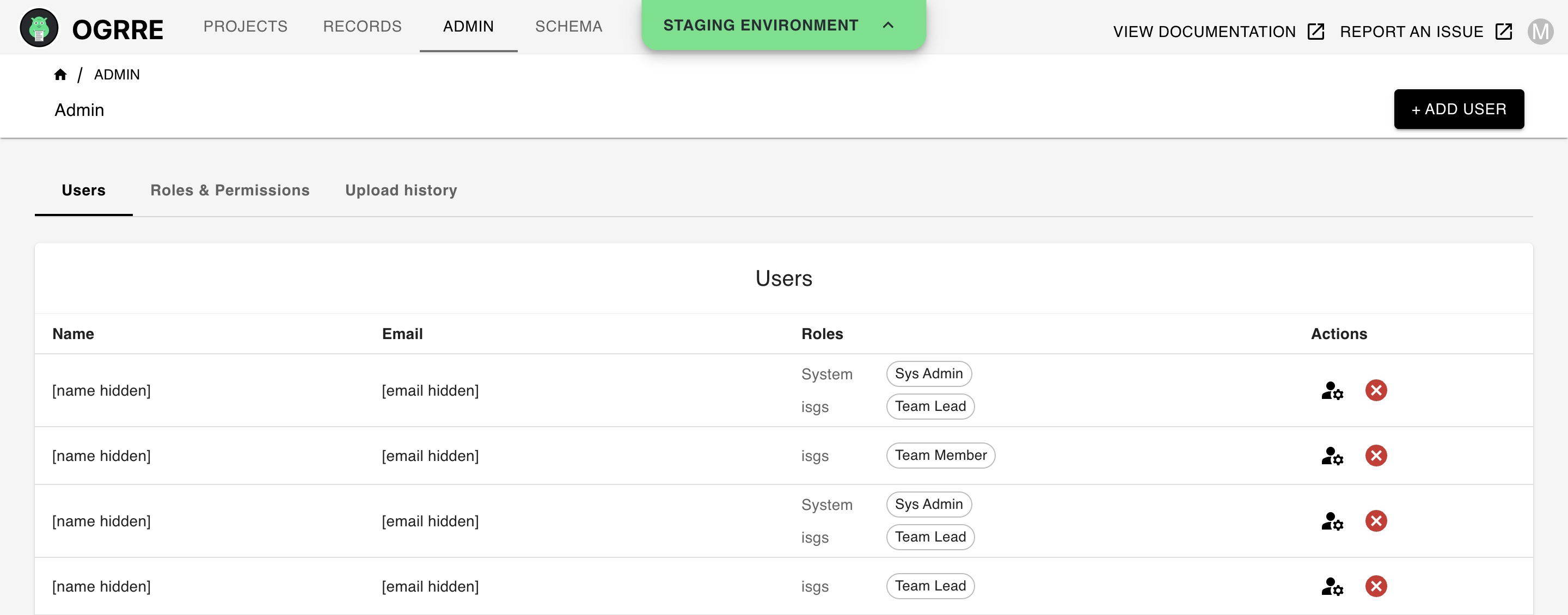
- Click + Add user and enter the email address the person uses to sign in with Google.
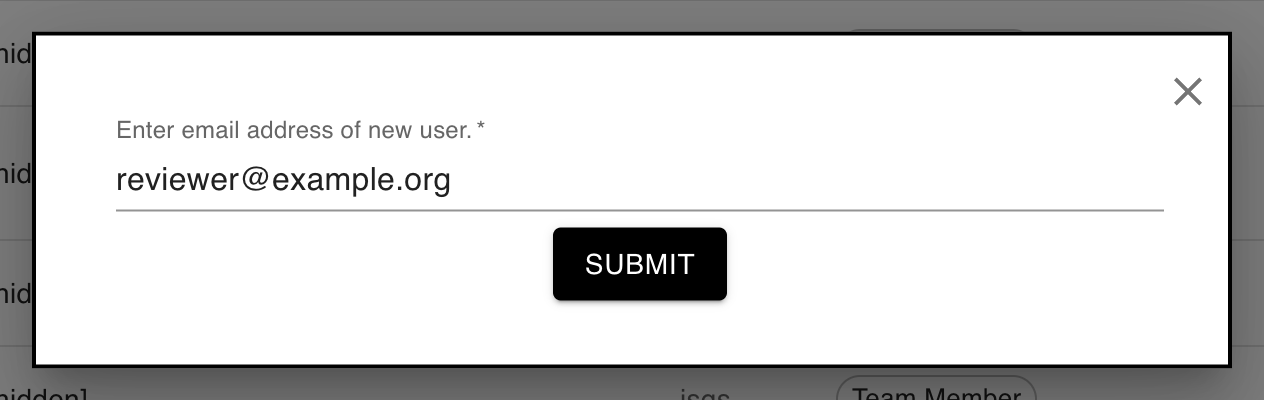
- Click Submit. The Users table refreshes after a successful addition. New users receive the team member role for the current team; assign any additional roles as described below.
Update user roles
Updating roles requires manage_team permission. Users can hold multiple roles. Team roles apply to the team currently selected in the header; system roles apply across teams.
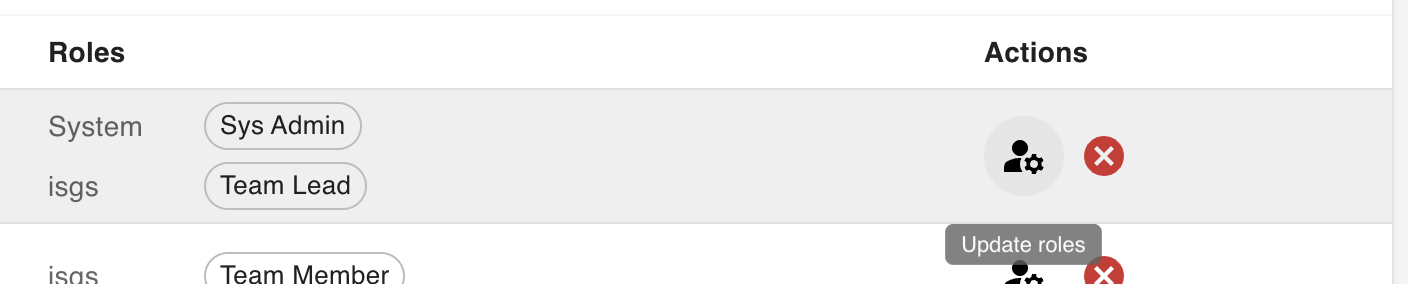
- In the user's row, click the Update roles icon in the Actions column.
- In Assign roles, click role chips to select or deselect them. Selected roles have a check mark. The System Roles section is available only with
system_administrationpermission; Team Roles identifies the team being edited.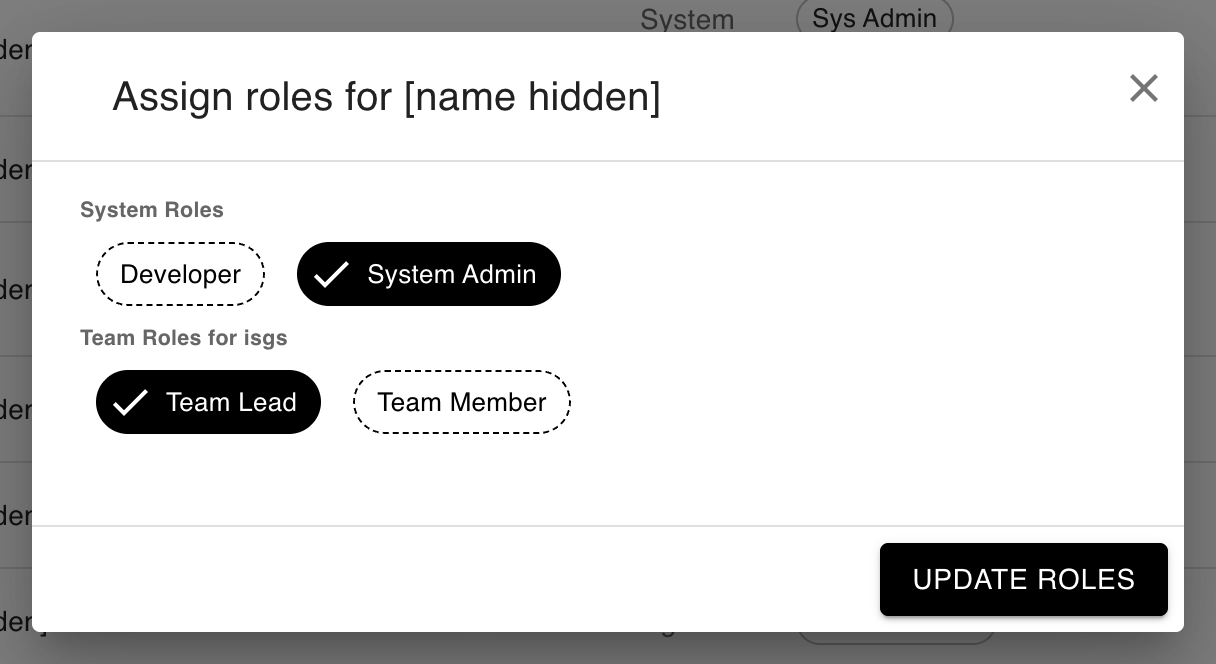
- Click Update Roles to save. Check the refreshed Users table to confirm the assignment.
Administrators with system_administration permission can inspect and change what roles allow under Admin → Roles & Permissions. Assigning a role to a user and changing a role's permissions are separate actions.